How to Delete Duplicate Photos on iPhone
Find exact copies and near-duplicates — swipe to remove them in seconds.
Duplicate photos accumulate faster than most people realize. Burst mode, accidental re-saves, and multi-device sync mean your library might contain thousands of photos you only ever needed to keep once. Clearing them takes minutes with the right tool.

Step-by-Step Guide
- Download Declutter from the App Store. Free, no account needed.
- Open the app and grant photo access. Declutter only reads your library on-device — nothing is uploaded.
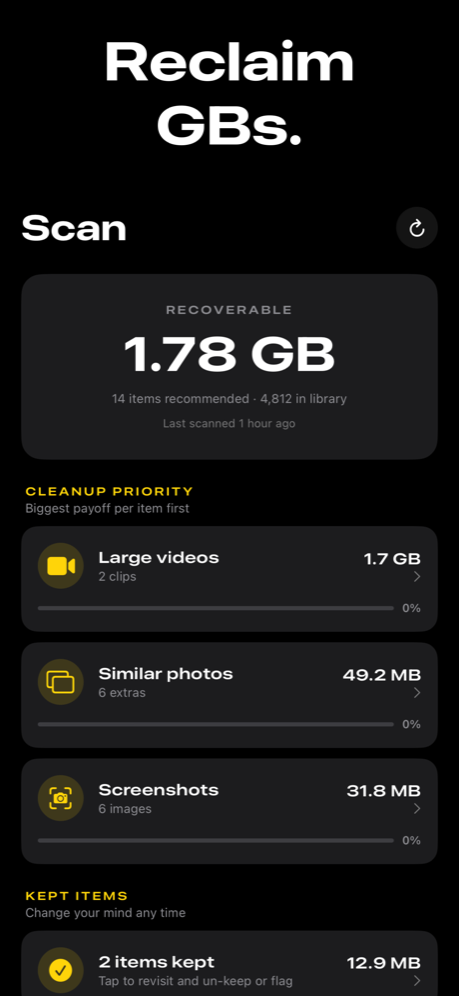
- Tap Scan. Declutter identifies exact duplicates and near-duplicates across your entire library.
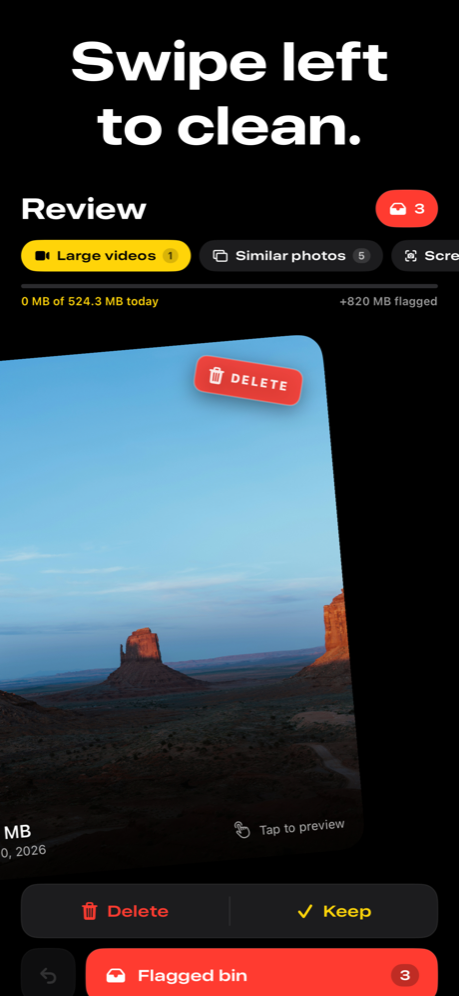
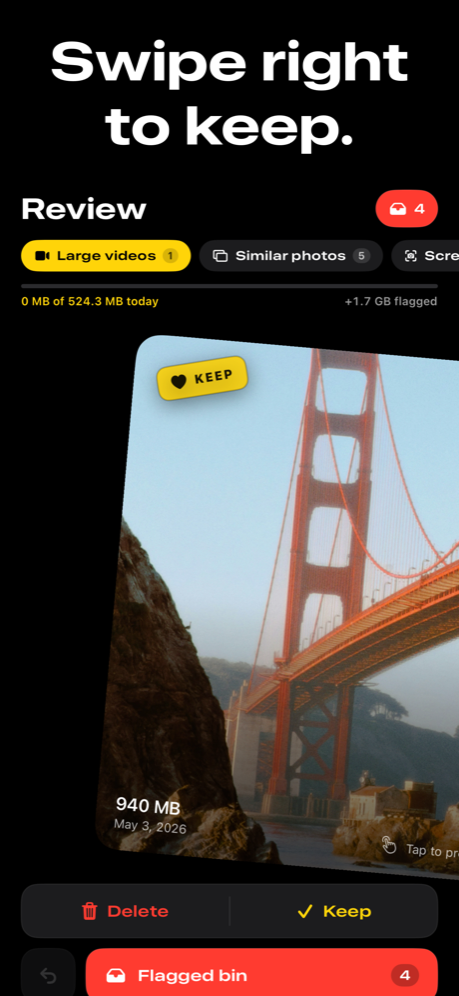
- Review each photo full-size. Swipe right to keep, swipe left to flag for removal. The clearer copies and the best-lit shots are easy to spot at full size.
- Check the bin and confirm deletion. Flagged photos wait for your review before anything is removed. After confirmation, items still have 30 days in Apple's Recently Deleted album as a backup.
Where Duplicates Come From
Burst mode
Holding the shutter captures dozens of nearly identical shots in a second. iOS suggests a "best" photo to keep, but the rest remain in your library unless manually deleted.
Multi-device and cloud sync
Photos synced from an old iPhone, imported from a Mac, or re-downloaded from iCloud after a restore often create exact copies alongside the originals already in your library.
WhatsApp, Instagram, and other apps
Many apps save a copy of every image you open or share directly to your photo library. These saved copies are often exact duplicates of photos you took yourself.
Screenshot-then-edit patterns
Taking a screenshot to edit it in another app — then saving the result — leaves both the original screenshot and the edited version, each consuming storage.
Built-in Duplicates vs. Declutter
iOS 16 added a built-in Duplicates album in Photos that finds exact bit-for-bit matches. It's a good starting point, but it misses near-duplicates — shots taken a second apart of the same scene, or photos with slight differences in crop or exposure. Declutter finds both, and the swipe-to-decide interface makes working through large groups much faster than the built-in merge tool.
Tips
Review at full size. It's tempting to decide quickly, but zooming in on a face or a detail is often the only way to tell which shot in a group is actually sharper.
Sort by size first. Declutter shows the biggest space-savers first. Clearing a few large video duplicates can reclaim more space than hundreds of photo duplicates.
Empty Recently Deleted after. Deleted photos move to Apple's Recently Deleted album. To reclaim the space immediately, go to Photos → Albums → Recently Deleted → Delete All.
Frequently Asked Questions
Does iPhone automatically remove duplicate photos?
iOS 16 and later has a built-in Duplicates album in Photos that finds exact matches. However, it doesn't catch near-duplicates — similar shots from bursts or photos taken seconds apart. Declutter finds both.
How do duplicate photos end up on my iPhone?
Duplicates commonly come from burst mode, syncing the same photo from multiple devices or services, screenshot-then-save patterns, and re-saving photos from apps like WhatsApp or Instagram.
Will deleting duplicates affect my iCloud Photo Library?
Yes — if iCloud Photos is enabled, deletions will sync to iCloud and other devices after a short delay. You can recover deleted photos from Recently Deleted within 30 days on any device.
Can I recover a photo I deleted by accident?
Yes. Deleted photos stay in Apple's Recently Deleted album for 30 days. Open Photos → Albums → Recently Deleted, tap the photo, and choose Recover.