How to Free Up Storage on iPhone
A step-by-step guide using Declutter — free, on-device, private.
Photos and videos are almost always the biggest drain on iPhone storage. Duplicates, burst shots, forgotten screenshots, and old recordings quietly pile up until your phone starts warning you. Clearing them takes minutes — if you know where to look.

Step-by-Step Guide
- Download Declutter from the App Store. It's free and requires no account or sign-up.
- Grant photo library access. Declutter reads your library on-device only. Nothing is uploaded.
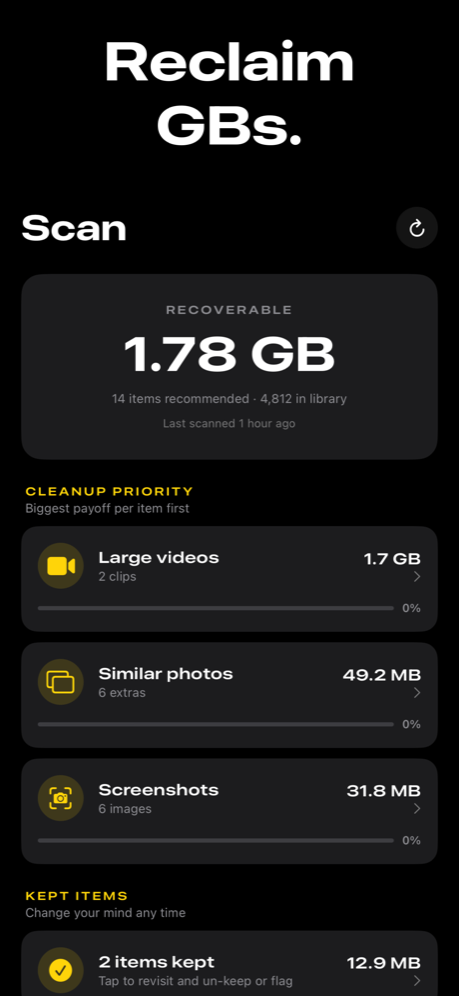
- Tap Scan. Declutter finds duplicates, similar shots, forgotten screenshots, and large videos. Results are sorted so the biggest space wins come first.
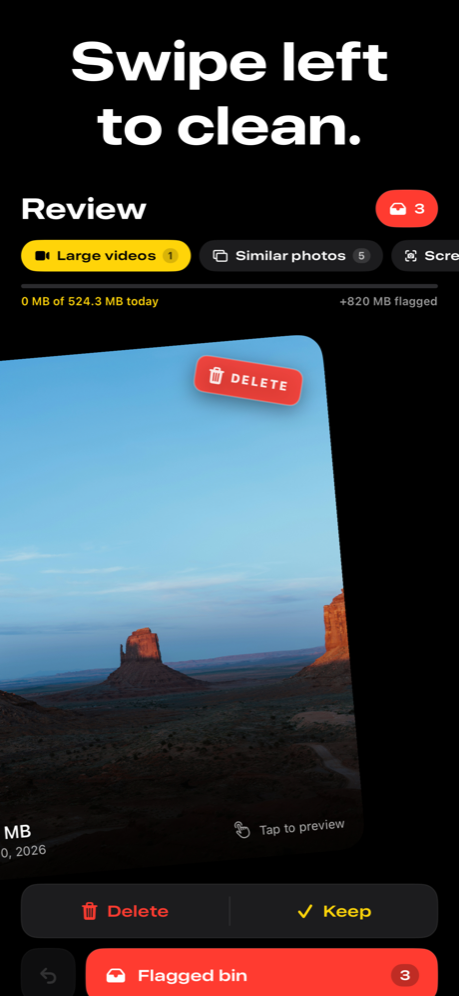
- Swipe through the results. Swipe right to keep a photo, swipe left to flag it for removal. Full-size previews make it easy to judge each one quickly.
- Review the bin, then confirm. Everything flagged waits for your sign-off before anything is deleted. Even after deletion, items spend 30 more days in Apple's Recently Deleted album.
What Takes Up the Most Space
Duplicate photos
Burst shots, accidental re-saves, and photos synced from multiple devices are the most common source of wasted space. Declutter groups them so you can keep the best copy and remove the rest.
Similar photos
Five nearly identical shots of the same scene — taken a second apart — take up five times the space. Picking the best one and deleting the others adds up fast across an entire library.
Forgotten screenshots
Receipts, directions, memes, and app notifications pile up silently. Most screenshots are looked at once and never needed again, but they stay in your library indefinitely.
Large videos
A single minute of 4K footage can be over 400 MB. Old recordings that you've already watched or shared are often the single biggest space reclaim available.
Tips for Keeping Storage Under Control
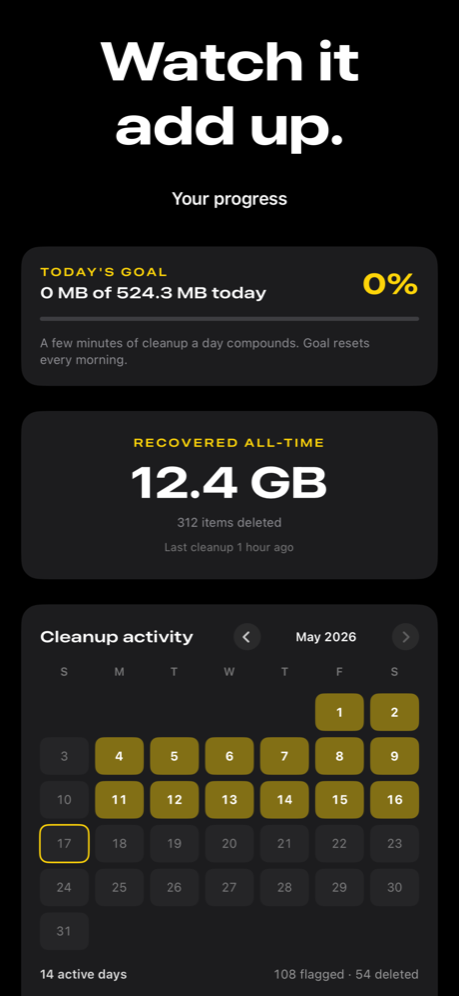
Scan monthly. A short monthly cleanup prevents the library from growing out of hand again. Declutter's reminder feature can prompt you on a schedule you choose.
Clear Recently Deleted afterward. When you confirm deletion in Declutter, photos move to Apple's Recently Deleted album. Go to Photos → Albums → Recently Deleted → Delete All to free the space immediately.
Check iPhone Storage in Settings first. Go to Settings → General → iPhone Storage to see exactly how much space photos are consuming before you start. It helps set expectations for how much you can reclaim.
Frequently Asked Questions
What takes up the most storage on an iPhone?
Photos and videos are typically the biggest storage consumers on iPhone. Duplicate photos from burst shots, similar photos taken seconds apart, forgotten screenshots, and long videos can collectively account for several gigabytes of wasted space.
How do I check what is using storage on my iPhone?
Go to Settings → General → iPhone Storage. iOS shows a bar chart of what's using space. Photos is usually near the top. Tap it to see the total size of your photo library.
Does deleting photos from iPhone free up space immediately?
Not immediately. Deleted photos move to the Recently Deleted album and stay there for 30 days before being permanently removed. To free space right away, go to Photos → Albums → Recently Deleted and tap Delete All.
Is Declutter safe to use?
Yes. Declutter runs entirely on your device — your photos never leave your iPhone. Nothing is deleted without your explicit confirmation, and items spend 30 more days in Apple's Recently Deleted album before being permanently removed.