How to Delete Screenshots on iPhone Fast
Clear out the screenshots cluttering your library — in minutes, not hours.
Screenshots are the easiest clutter to ignore. A receipt here, a meme there, directions you'll never look at again — they pile up invisibly until you're running low on storage. Clearing them is quick once you have a decent tool.

Two Ways to Delete Screenshots
Option 1 — Use Declutter (recommended)
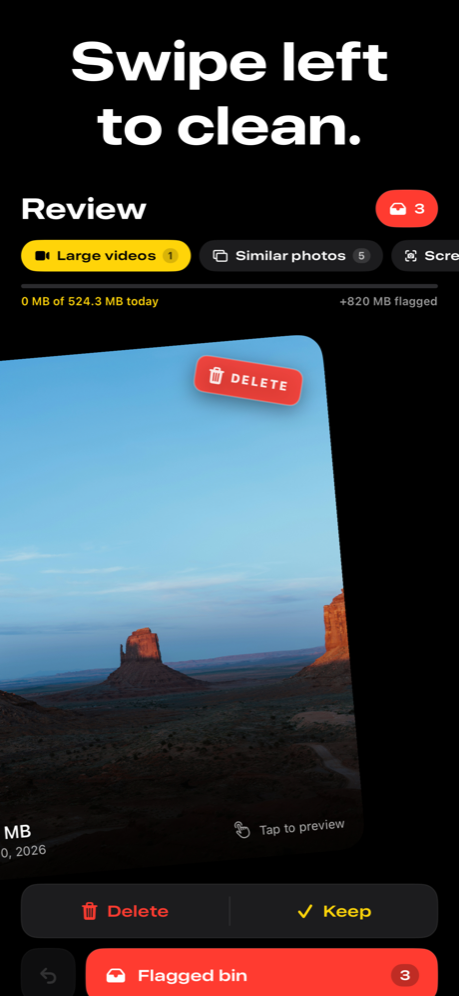
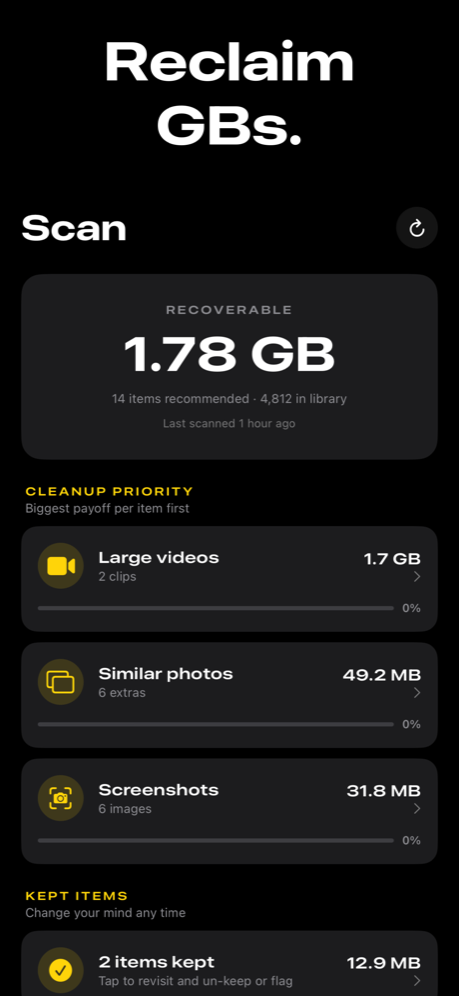
Declutter surfaces your screenshots full-size alongside duplicates and large videos, so you can clear everything wasting space in a single pass. Swipe left to flag, swipe right to keep — it's the fastest way to review a large backlog.
- Download Declutter from the App Store.
- Grant photo access and tap Scan. Everything runs on-device.
- Swipe through your screenshots. Right to keep, left to remove.
- Confirm deletion from the bin when you're done.
Option 2 — Use the built-in Photos app
iOS has a Screenshots album under Photos → Albums. To delete all at once: tap Select, then tap Select All in the top right, and choose the trash icon. To review before deleting, tap each screenshot individually. This works well for a quick purge, but offers no swipe interface for reviewing quickly one by one.
Why Screenshots Pile Up
The take-now-deal-with-later pattern
Screenshots are the easiest way to save something quickly — an address, a conversation, a code, a recipe. The intention is always to revisit it later. Later rarely comes.
App-generated screenshots
Some apps automatically save screenshots to your photo library when you use their capture features. Chat apps in particular often save shared images as they arrive.
No automatic cleanup
Unlike messages, which can be set to delete after 30 days, screenshots in your photo library stay forever unless you delete them manually.
Tips
Be decisive. Most screenshots were taken for a one-time reason. If you don't remember why you took it, you probably don't need it.
Empty Recently Deleted afterward. Deleted screenshots move to Apple's Recently Deleted album. Go to Photos → Albums → Recently Deleted → Delete All to free the space right away.
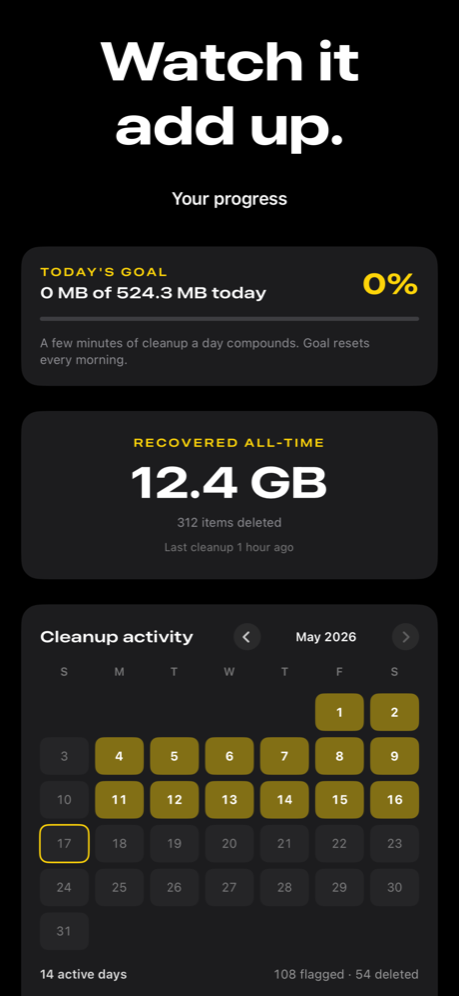
Set a cleanup reminder. Declutter can remind you to clean periodically. A monthly five-minute sweep is much easier than a multi-hour annual purge.
Frequently Asked Questions
How do I delete all screenshots on iPhone at once?
In the Photos app, go to Albums → Screenshots, tap Select, then tap Select All, and choose Delete. Alternatively, use Declutter to review them one by one — it's faster when you want to keep some and remove others.
How much space do screenshots take on iPhone?
A typical iPhone screenshot is 1–5 MB. If you have a few thousand accumulated, that can add up to 5–15 GB — a significant chunk on a 64 GB or 128 GB device.
Where are screenshots stored on iPhone?
Screenshots save to your Photos library. Find them in Photos → Albums → Screenshots, or in All Photos alongside your camera roll.
Can I stop apps from saving screenshots to my photo library?
Screenshots taken by pressing the side button and volume up always save to your library. For in-app screenshots, check the app's own settings — many have an auto-save toggle you can disable.