Add Text & Captions to Video Without Speech
Manual captions for music videos, b-roll, tutorials, and any video without dialogue.
Not every video has speech to transcribe. Music videos, time-lapses, product demos, silent tutorials, nature footage — sometimes you just need to place text on a video with precise timing. Video Captions lets you do exactly that.
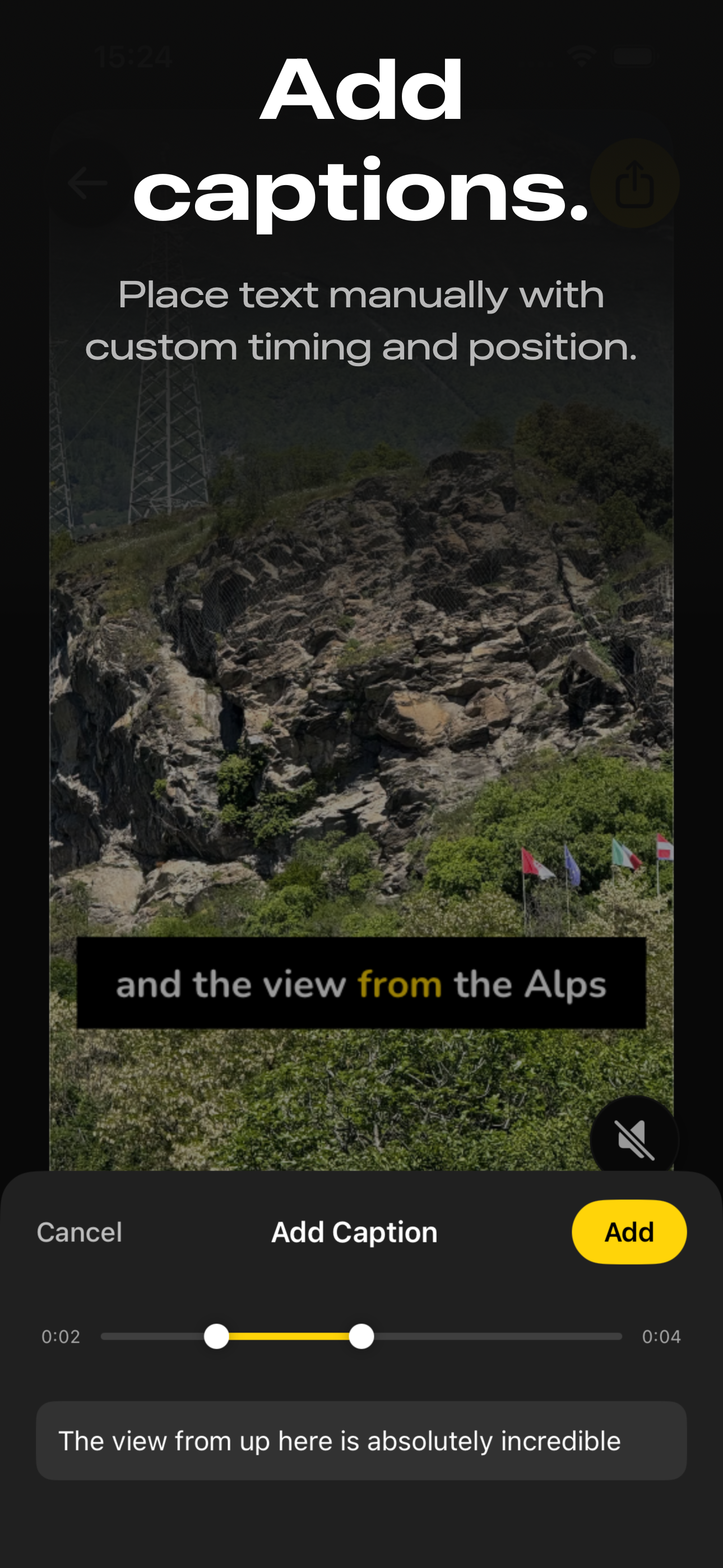
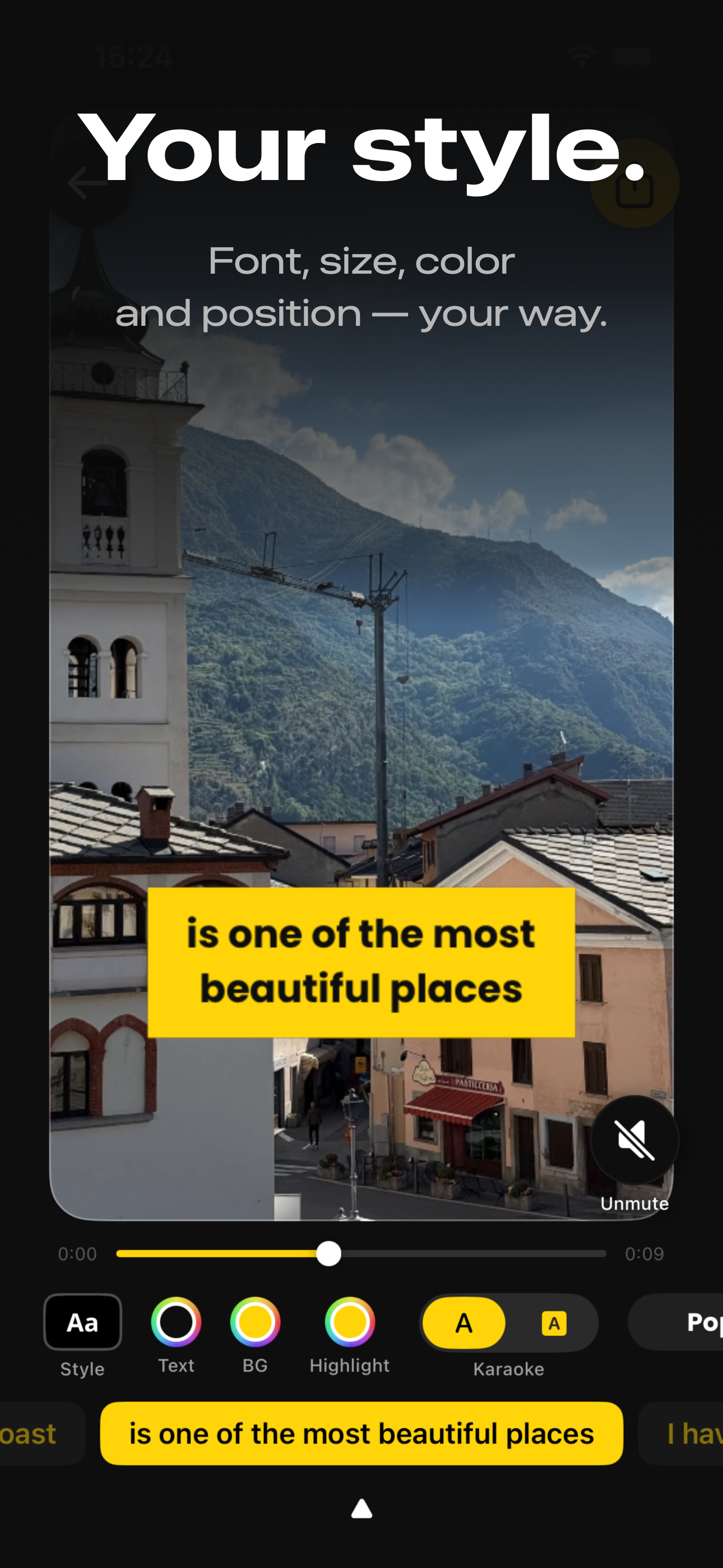
How to Add Manual Captions
- Open Video Captions and select a video from your photo library.
- Tap "Add Caption" instead of auto-transcribing. This opens a manual text editor where you type your caption and set the exact start and end time using sliders.
- Position and style your text — use the same styling tools available for auto-captions: presets, font, size, color, background, highlight, and karaoke effects.
- Add more captions — repeat for each text segment. Each caption has its own timing, so you can build a sequence of text that tells a story across the video.
- Export — the text is burned into the video, ready to share anywhere.
Use Cases
Music videos
Add lyrics as timed captions that appear in sync with the music. Use the karaoke highlight effect to make words light up as they're sung.
B-roll and cinematic footage
Add location names, dates, or context over scenic shots. A travel montage becomes more meaningful when viewers know where and when each clip was filmed.
Silent tutorials and demos
Walk viewers through a process using on-screen text instead of voiceover. Step-by-step instructions as timed captions work well for cooking, crafts, DIY, and product demos.
Social media storytelling
Tell a story with text over video — the "POV" or "storytime" format that's popular on TikTok and Instagram Reels. Place text that appears and disappears at the right moments.
Annotations and callouts
Add notes, labels, or commentary over existing video content. Useful for reaction videos, reviews, or educational content where you want to highlight specific moments.
Combine with auto-captions
You can also mix manual and automatic captions. Transcribe the speech automatically, then add extra manual text for context, translations, or annotations on top of the transcribed dialogue.
Frequently Asked Questions
Can I add text to a video that has no speech?
Yes. The Add Caption feature lets you place text on any video — with or without speech. You type the text, set when it appears and disappears, and choose the style and position.
Can I combine auto-transcribed captions with manual text?
Yes. Auto-transcribe the speech, then add additional manual captions on top. This is useful for adding context, translations, or annotations alongside dialogue.
Can I control when each text appears and disappears?
Yes. The Add Caption feature includes start and end time sliders. Scrub through the video to place text precisely where you want it.
Do manual captions have the same styling options as auto-captions?
Yes. All the same presets, fonts, colors, backgrounds, highlights, and positioning options are available for manual captions.
What kind of videos work with manual captions?
Any video. Music videos, b-roll, time-lapses, silent tutorials, product demos, nature clips, social media stories — any video where you want to add text.