How to Add Captions to a Video on iPhone
A step-by-step guide using Video Captions — free, offline, private.
Adding subtitles to videos on iPhone used to require uploading your footage to a cloud service or using a complex desktop editor. With Video Captions, the entire process happens on your device in under a minute.
Step-by-Step Guide
- Download Video Captions from the App Store. It's free and requires no account or sign-up.
- Open the app and select a video from your photo library. Any video works — recorded on your iPhone, downloaded, or transferred from another device.
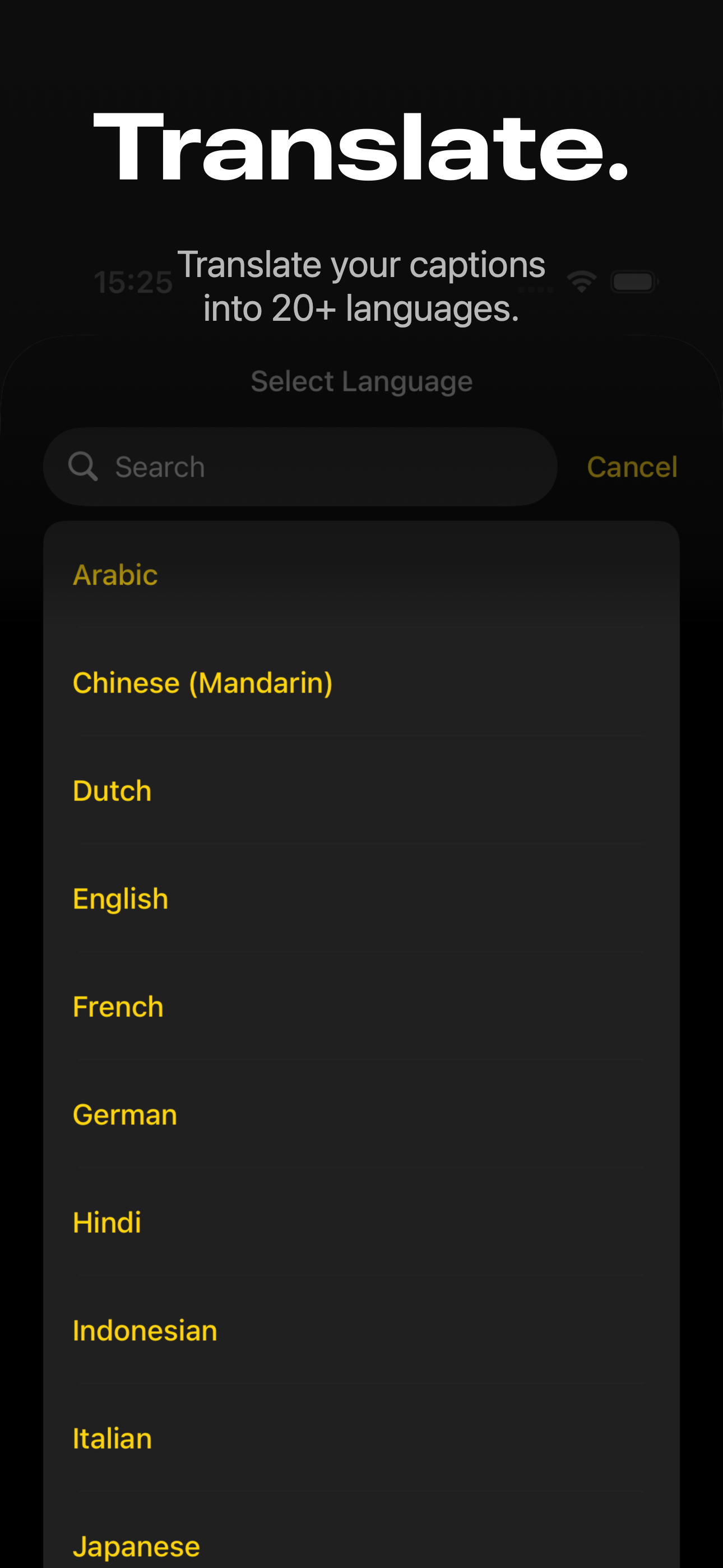
- Choose the spoken language. Video Captions supports dozens of languages including English, Spanish, French, Portuguese, German, Japanese, Korean, and Mandarin.
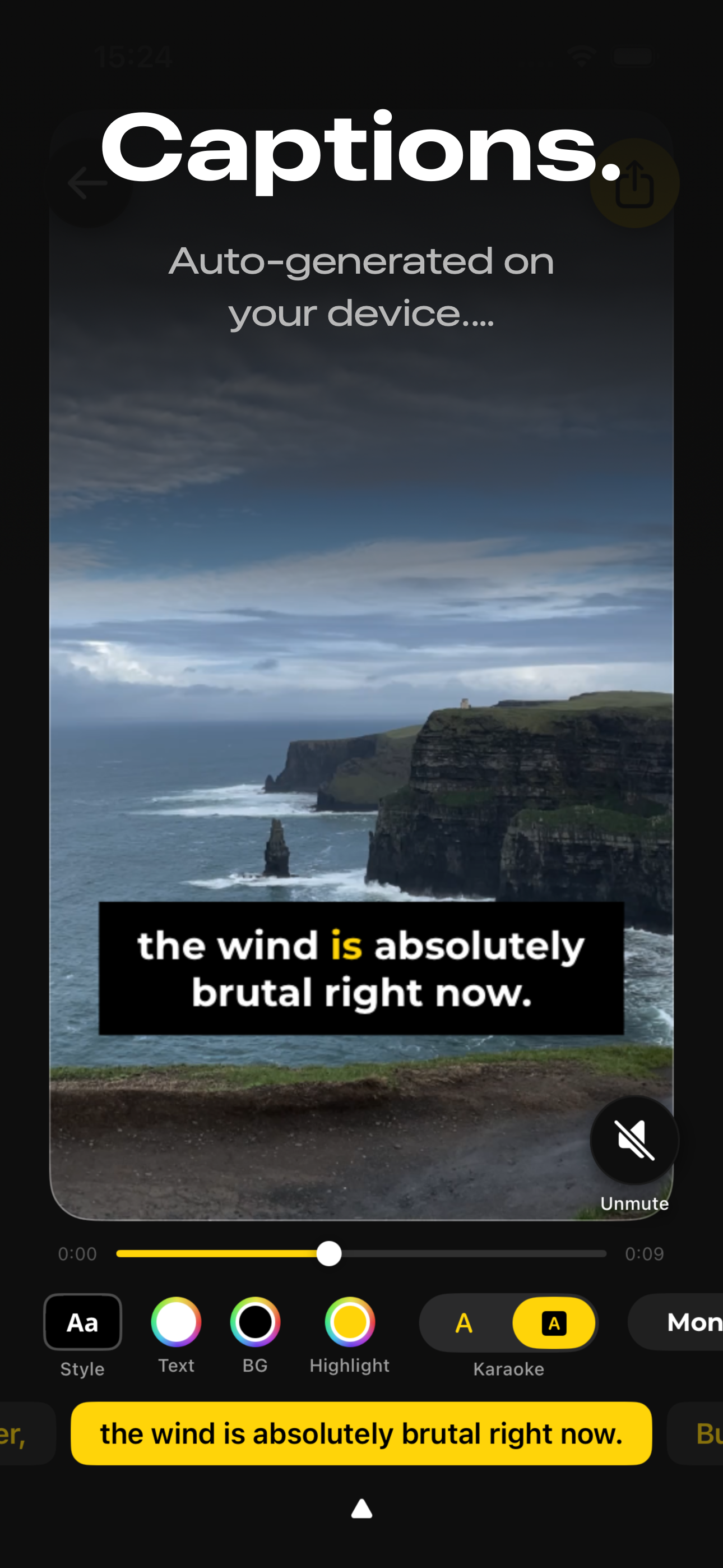
- Wait a few seconds while the app transcribes the speech. This happens entirely on your device using on-device speech recognition — once set up, no internet connection needed.
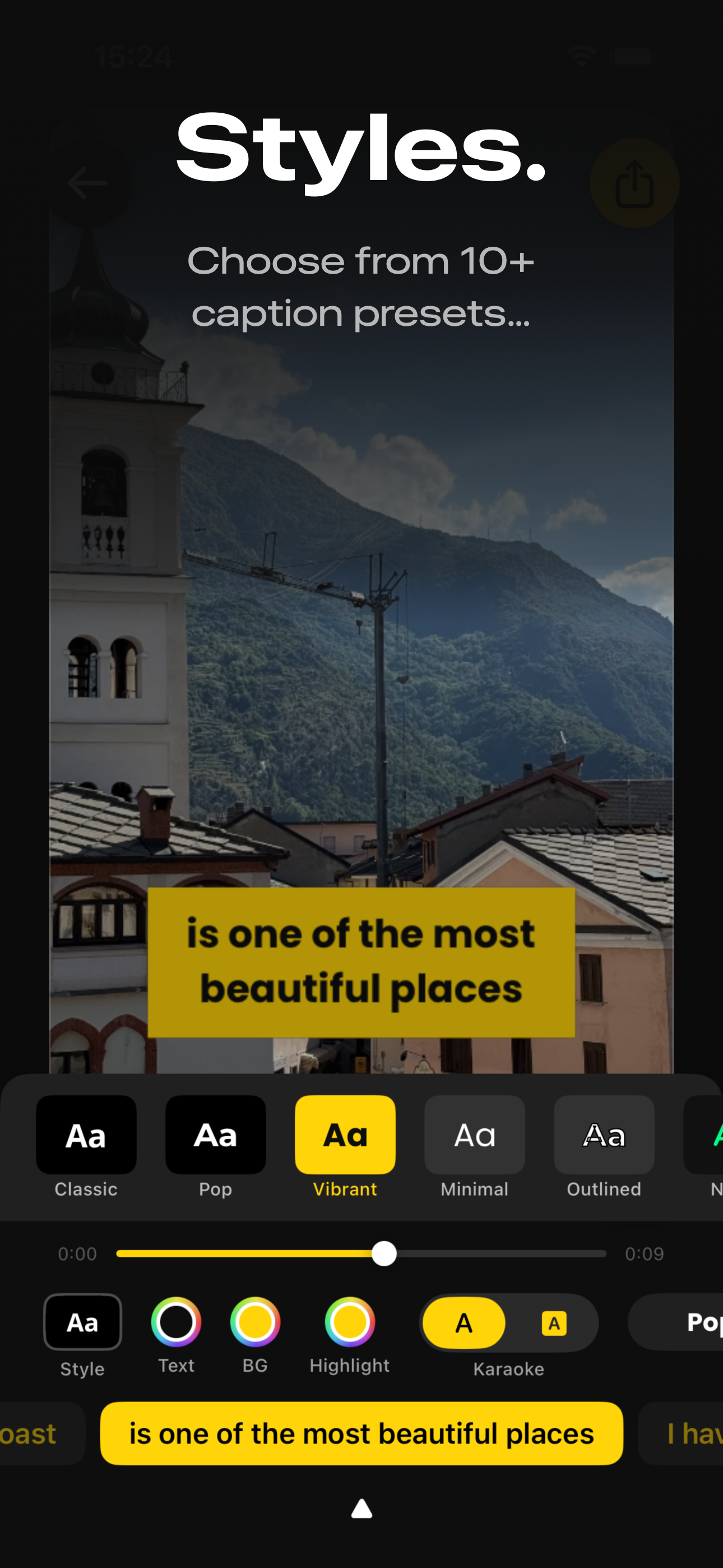
- Customize the caption style. Choose from 10+ presets like Classic, Pop, Vibrant, Minimal, and Outlined. Or fine-tune the font, size, color, and position manually.
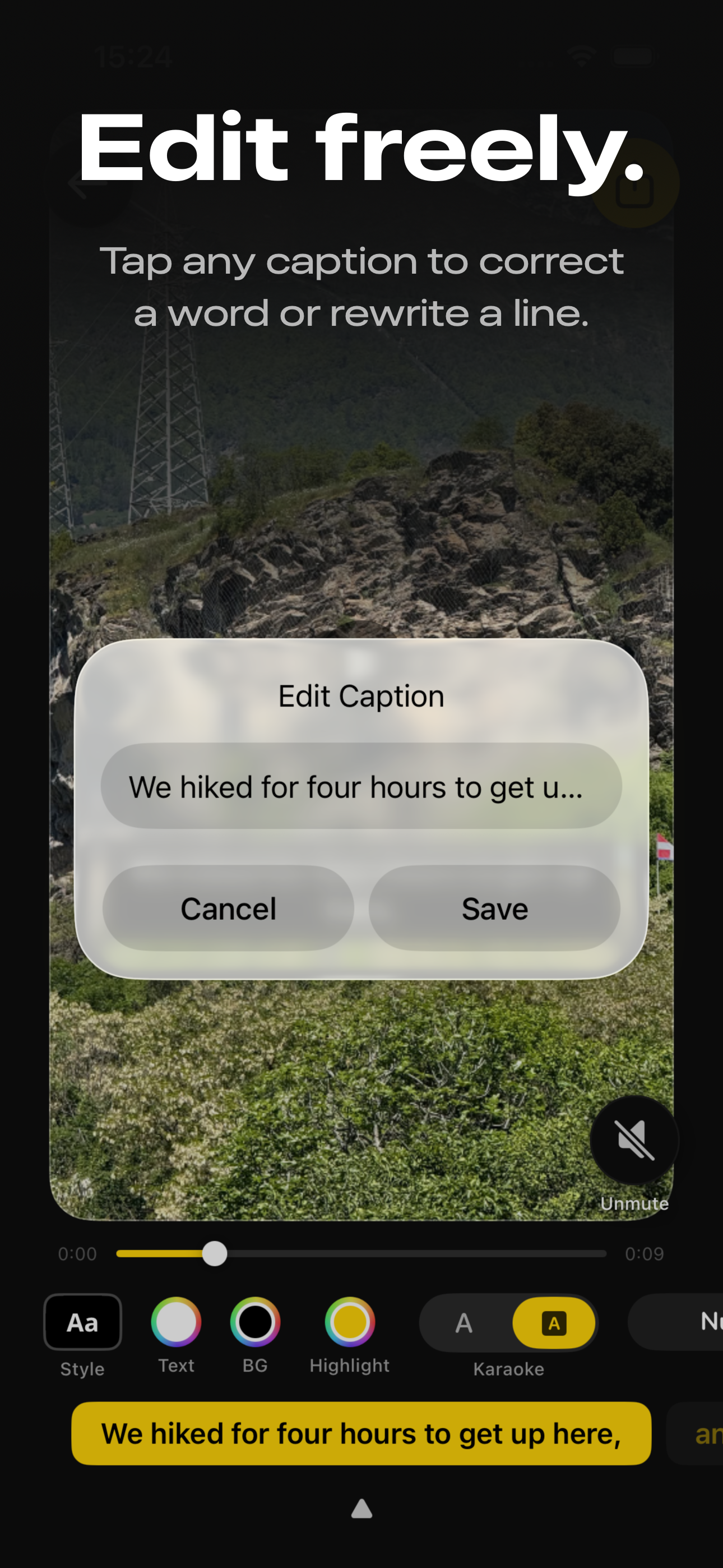
- Edit any caption by tapping on it. Correct a word, rewrite a line, or adjust the timing.
- Export the video. Captions are burned into the video file, so they'll display on any platform you share to.
Why Add Captions to Your Videos?
Most people watch with sound off
Studies consistently show that 80–85% of social media videos are watched without sound. Without captions, those viewers scroll past your content without engaging.
Captions boost engagement
Videos with captions see higher watch time, more shares, and better retention. On platforms like Instagram and TikTok, captions keep viewers watching even in sound-off environments like commutes and offices.
Accessibility matters
Hundreds of millions of people worldwide experience hearing loss. Captions make your content accessible to those with hearing difficulties — and they're increasingly expected by audiences and platforms alike.
Better SEO for video
Search engines can't watch your video, but they can read your captions. Burned-in subtitles improve discoverability on platforms that index video content.
Tips for Better Captions
Record in a quiet environment. Speech recognition accuracy depends heavily on audio quality. Minimize background noise for the best results.
Speak clearly and at a natural pace. The on-device transcription engine handles natural speech well, but mumbling or very fast speech can reduce accuracy.
Review and edit before exporting. Automated transcription is good but not perfect. A quick review catches the occasional error — especially with names, technical terms, or accented speech.
Use high-contrast caption styles. White text with a dark background or outline is the most readable combination across different video content.
Frequently Asked Questions
Can I add captions without an internet connection?
Yes. Video Captions uses on-device speech recognition, so once set up, the entire process works offline. A one-time model download may be required during initial setup, but no data is uploaded anywhere.
Does it work with videos not recorded on iPhone?
Yes. Any video in your photo library works — whether it was recorded on your iPhone, downloaded from the web, AirDropped, or transferred from another device.
Can I add captions in a language other than English?
Yes. Video Captions supports all languages available through your device's on-device speech recognition, including Spanish, French, Portuguese, German, Japanese, Korean, Mandarin, and many more.
Are the captions burned into the video?
Yes. When you export, the captions become part of the video file. They'll display on any platform — Instagram, TikTok, YouTube, WhatsApp, or anywhere else — without relying on platform-specific subtitle features.